Teacher Identity

This blog post was inspired by Sandy Millin’s write-up of an IATEFL 2025 panel on the subject of Teacher Identity

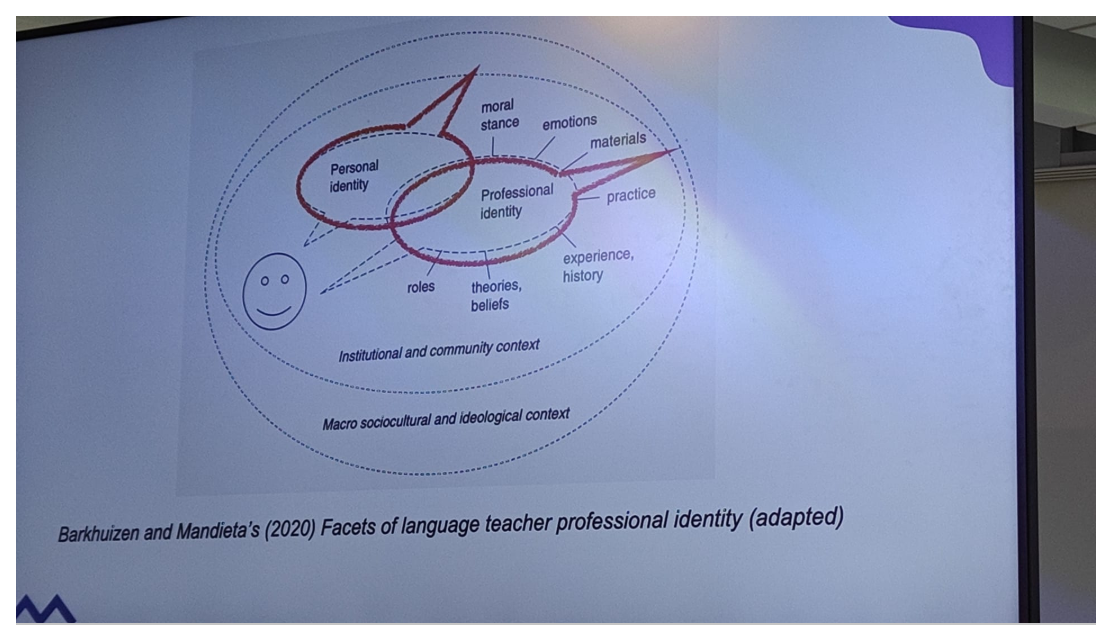
I think opportunities to discuss and reflect on teacher identity, such as the IATEFL 2025 panel written up by Sandy, are invaluable, as identity is constantly evolving and growing. In the first talk Sandy summarised, the speaker, Robyn Stewart, adapted Barkhulzen and Mandieta’s (2020) facets of language teacher professional identity to highlight the influence of the world on identity, external influence on it. It also shows the interplay between personal and professional identity and the elements that can be considered to be part of our professional identity:

Via Sandy Millin’s write-up of Robyn Stewart’s talk in the IATEFL 2025 teacher identity panel.

There are so many things that influence who we are in the classroom! One of the lessons Robyn Stewart drew from her dissertation research was “Don’t underestimate the role of context”. I’m inclined to agree:

On a personal level, I’m not that interested in generative AI, generally distrust it, disapprove of the resource consumption it represents and feel the amount of money, time, expertise and so on being ploughed into it everywhere could be better spent elsewhere (e.g. use of AI in medical contexts) rather than generating infinite quantities of text.

As a language learner, if I had the time, energy and spare brain, or was as driven as summer 2014 me, such that I could overcome the lack of all the afore-mentioned (and could override my concerns about unnecessary resource consumption!), I would perhaps explore the possibilities of communicating with it in Italian/French/German and using it to help me improve my production. I could get *well* in to a project like that. (And if I were teaching general English I could use the knowledge and skills I might develop in the process to help my students benefit from using the English version.)

However, my professional identity has the greatest influence on my interaction with AI: I have to embrace AI’s existence and figure out ways to work with students in a world which it is now very much a part of. In terms of context, I work specifically in higher education, preparing students to study at university by teaching them an Academic English skills course which they do alongside subject modules. Assessments are high stakes in terms of scores but they also need to ensure that students develop the skills necessary to succeed, including that of correctly treading the line between fair use of tools and academic misconduct regulations – a line that has been evolving with the evolution of AI. We used to mutter about Grammarly and translation tools, but ignore them other than prohibiting students from using them and putting a handful forward for misconduct each assessment cycle, and then generative AI came along and blew all that out of the water and onto a whole other level. We have been grappling with it ever since. However, it will only be come September of this year that I will engage with it fully as a teacher in the classroom beyond warning students off it (rather than only from the perspective of course coordination, course/materials development – as in, integrating teaching AI – related skills into our materials, currently in progress, rather than developing materials using AI – and misconduct evaluation).

The young Vietnamese participants in the study carried out by Hang Vu, the third speaker of the IATEFL 2025 panel on teacher identity, demonstrated a high level of insight and awareness into the issues they face in developing their professional identity as teachers in a world dominated by AI, and what kind of training they need in order to do that successfully. Sandy described Hang Vu’s idea of “emerging identities”, as summarised on the slide below:

Via Sandy Millin’s write up of Hang Vu’s talk in the IATEFL 2025 panel on Teacher Identity.

There’s a lot to think about there! I suppose I have mainly been teacher/coordinator as AI inspector in professional terms, but also teacher as learner as despite my personal misgivings: I have made an effort to attend (whether live or via recording) all the training available to us regarding AI. I have been teacher as AI user when I have used it to generate discussion questions (and then teacher as critical thinker when I have deleted half of them as unsuitable and edited/adapted others!). Teacher as AI instructor/facilitator, of course, as mentioned above, is still in the “coming soon to a classroom near you” stage. I suppose will have to be “teacher as AI supporter” within the “teacher as instructor/facilitator” side of things – regarding what we decide are acceptable uses of AI…but I predict it will be more along the lines of channeling inevitable use rather than encouraging use vs non-use! And I think alongside that, I will definitely be encouraging critical discussion in my classroom regarding the use of AI and surrounding issues. It will be interesting to see what the students think. It seems to me that just as much as the youngsters in the Vietnamese study, us old fossils who have been teaching a good while also need to regularly engage with our professional identities and figure out how we are going to move with the times professionally, regardless of (although obviously also interlinked/connected with/influenced by!) our personal feelings towards the various changes (which as Catherine Walters’ plenary discussed, have been many and varied over the last 50 years!)

Sandy’s post finished with some of the questions posed by the audience, one of which was “Should we proactively work with learners about how to do AI? Maybe we should ask learners for the whole AI conversation, not just the final result.” – It’s an interesting one. I definitely want critical discussion and to find out the students’ take on it, and as with other things potentially their feedback/ideas/thoughts can feed into future iterations of the course, but ultimately, in terms of assessment, what is and isn’t acceptable has to align with university and college policy on AI use. One thing I do hope is that I will be able to persuade students of the importance of developing their own voice, as I think if I can do that, then reasonable/acceptable use (with the appropriate guidance on how) will be a natural progression. For sure, all this thinking I am doing at the moment (I’m on annual leave – I have time to think!!) will be a useful form of preparation for the task ahead!

This blog post is plenty long enough already, yet I haven’t even scratched the surface of identity, personal and professional, and the interplays between identity and classroom. But, another time… 🙂

Using Adobe Firefly for Image Generation

Have you used Adobe Firefly before? Me neither. But we have free access to it via the University and the TEL team has used it, and so did a session for us on it. It can be used to for images to put in lesson handouts and slides, but also online platforms like Wooclap and Quizlet.

You write a prompt in a box and it generates images.

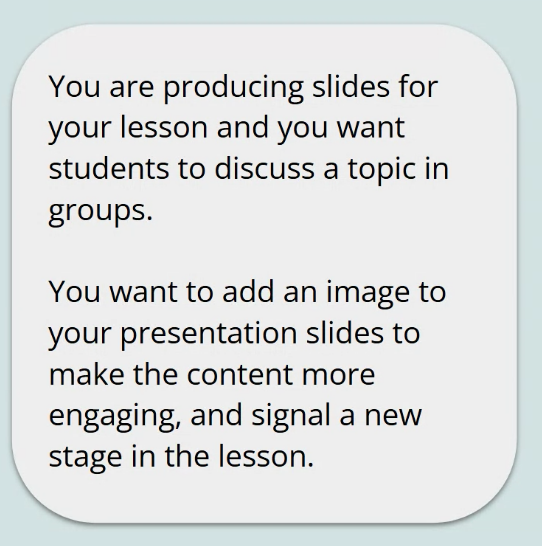
This was a scenario given to us:

Prompt 1: an image of 4 students in a discussion. This was the result:

Issues: There are 3 students and teacher. They look quite young while we teach university age students. Three of them are blonde so it isn’t a good representation of our students. So this is an example of the bias that exists in AI in an automatic result with no detail prescribed in the prompt.

Prompt 2: an image of 4 university students from diverse background in a discussion. This was the result:

Problems: They are not in a classroom.

Adding “seated” (to be more typical of a classroom):

Not a perfect picture (looks a bit like an airport…) but better than the first picture! In terms of the purpose of generating the image, this would probably work. Prompt writing/editing for Adobe Firefly tends to take multiple iterations before you get something you might be happy to use.

We were given the following tips:

  • add more detail to get better results;
  • be aware of bias as you engineer prompts and evaluate the outcome;
  • be picky – it may take several iterations to get what you want. Sometimes a fairly simple prompt immediately yields a satisfactory outcome but usually it takes a bit more effort. Particularly to produce an outcome that is suitably representative for an international student population.

Adobe Firefly has a lot of stock images that it draws on which means the quality is better than similar counterparts.

Once you have generated an image you can also edit it to a certain extent. Which is good as the first images you get can have arm melds, funny shaped heads and so forth! It’s not very good with limbs. A central human image may be fine but anyone in the background or if you require groups/more people, then problems abound! Despite these issues, Firefly is better at it than Gemini.

So al very cool but actually stock images like Pixabay (and creative commons licensed like Flickr – in particular ELTpics – if the context is suitable), i.e. human generated, are much less resource-intensive to use. So, don’t get too carried away by the “it’s so cool” thing. I tend to use Google image search and the appropriate level of license filter, personally.

My general impression: I can’t currently see an Adobe Firefly – shaped hole in my life that needs filling. I wonder if in 5 years time I will look back on this post with an “oh you innocent child” type lens or not?! Time will tell! It was a good session though, after being shown the prompts and pitfalls, we went into a breakout group and had to come up with prompts for another scenario. Unfortunately in my group, none of us had access sorted out yet so we couldn’t test the prompts we wrote.

Generative AI and Assessment

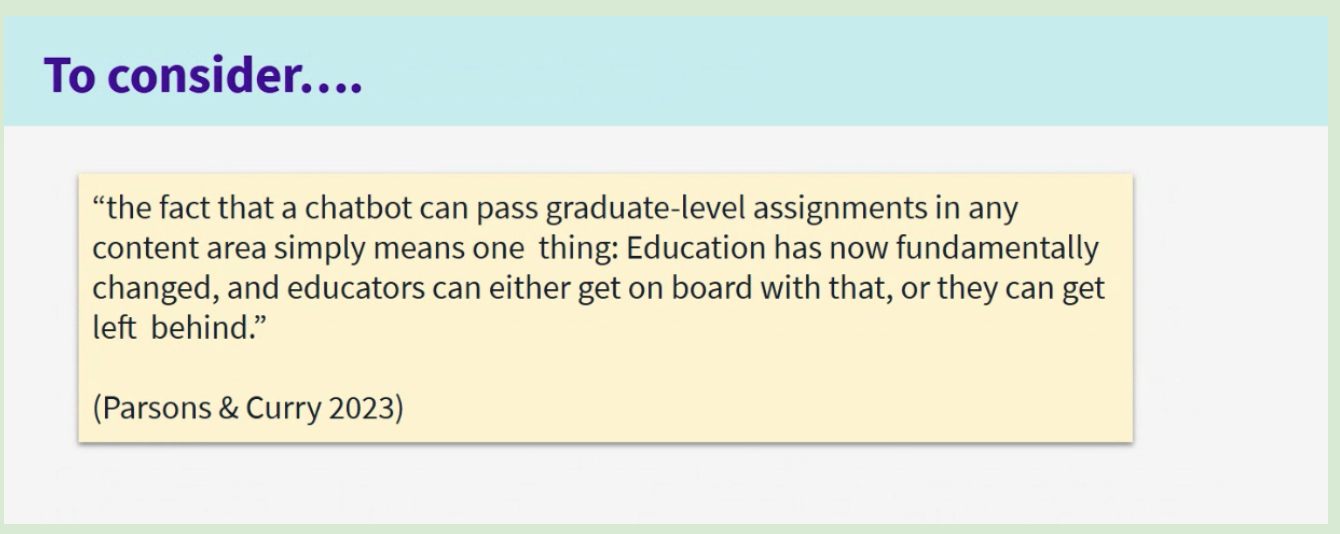
A session about Generative AI and EAP that I attended recently provided the above quote for our consideration. I think one of the things that is challenging about the Generative AI landscape and its presence in the context of higher education is that it evolves so rapidly. This rapid evolution contrasts starkly with much slower-moving policy-making and curriculum development processes. Certainly in my current context, this issue of becoming “left behind” has been one that we have been grappling with for a few years now. Initially, there was a period where once generative AI had emerged into existence, all we could do was watch, as it became increasingly apparent that students were using it in their assessments, while awaiting a university policy to inform our response. An extra layer of waiting then ensued because as well as being university policy-informed, we are Studygroup policy-informed. During that wait, our response to generative AI had to be “No. You can’t use this tool. It is against the rules. It will result in academic misconduct.” Of course, being as assessment in pathway colleges is high stakes (the deciding factor in whether or not a student can access their chosen university course), students use it anyway, due to running out of time, due to desperation, due to self-perceived inadequacy.

Now, we have the university policy which centres on ethical and appropriate use of AI, and acknowledging how and where it is used, and, in cooperation with Studygroup, are figuring out how to integrate AI use into our programme. We started by focusing on one of our coursework assessments, an extended essay, and discussing what aspects we thought were and weren’t suitable for students to use AI to help them with. So, for example, we thought it acceptable for students to do the following in their use of AI:

  • generate ideas around a topic, which they could then research using suitable resources e.g. the university library website and Google Scholar.
  • ask AI to suggest keywords to help them find information about the topics they want to research.
  • ask AI to suggest possible essay structures (but not paragraph level structure)
  • generate ideas for possible paragraph topics
  • get AI to proofread the essay but only at surface level, to suggest language corrections (this would only be the case if we no longer gave scores for grammar and vocabulary so will require rubric-level change)

Of course we can’t just implement this, we need to go through the process of getting approval from Studygroup for it and then building it into our materials. We can’t just expect learners to meet our expectations with no guidance other than the above list embedded in an assignment brief. Much like was discussed in the AI and Independent Learning webinar, we need to help the students to develop the skills that they need in order to use AI appropriately and effectively. This will include things as basic as how to access the university-approved AI (Gemini) and how to use it (including how to write prompts that get it to do things that are helpful and appropriate and equally avoid accidentally getting it to do things that aren’t helpful or acceptable). Also important will be raising their awareness of ethical issues surrounding the use of AI and of its inbuilt bias, as its output depends on what it has been trained on and there is always the risk of “hallucination” or false output. They will need to be cognisant of its strengths and weaknesses, and to develop an ability to evaluate its output so that they don’t blindly use or base actions on output which is flawed. Their ability to evaluate will also need to extend to being able to assess when and when not to use it, and how to proceed with its output.

All of the above is far from straightforward! When you look at it like that, it’s little wonder that left to their own devices students use it in the wrong way. So, in order to have an effective policy regarding the use of AI, there is a lot of preparation that is required. That skill-development and awareness-raising needs to be built in throughout the course into all relevant lessons. And that means a lot of (wo)man hours, given our course materials are developed by people who are also teaching, coordinating and so on. In addition, teachers will need sufficient training to ensure they have the level of knowledge and skill necessary to successfully guide students through the materials/lessons where AI features. The other complicating factor is that the extent of the changes means that new materials/lessons cannot be implemented part way through an academic year as all cohorts of a given year need the same input and to take assessments that are assessed consistently through the year. So, if we are not ready by a September, then we are immediately already looking at a delay of another year. It is a complex business!

So, I absolutely agree with the quote at the start of this post but I think it is also a LOT easier said than done. As developing an approach in a high stakes environment takes time but generative AI and tide wait for no man. By the time we reach the stage of being able to implement our plans fully, they will probably need adapting to whatever new developments have arisen in the meantime (already there is the question of Google Note and similar which we have not yet addressed!). For sure, the assessment landscape is changing and will continue to change, but I do believe that we can’t rely on “catching students out” e.g. with AI detection tools and the like. We need to support them in using AI effectively and acceptably, so that they can benefit from its strengths and be able to use it in such a way as to mitigate its weaknesses and avoid misuse. Of course, as mentioned earlier, to be able to do that, we, ourselves, as teachers, need to develop our own knowledge and skills in the use of AI so that we can guide them through this decidedly tricky terrain. Providing training is a means of ensuring a base level of competence rather than relying on teachers to learn what is required independently. Training objectives would need to mirror the objectives for students but with an extra layer that addresses how to assist students in their use of AI, and how to help them develop their criticality in relation to it. Obviously there will be skills and knowledge that teachers have that will be transferable e.g. around criticality, metacognition and so on, but support and collaboration that enables them to explore the application of them in the context of AI would be beneficial.

Apart from the issue of addressing AI use in the context of learning and assessments, in terms of not getting left behind, we also need to ensure that what we are offering students is sufficiently worthwhile that they continue to come and do our courses rather than deciding to rely on AI to support them through their studies, from application through completion and side-stepping what we offer. But that’s for another blog post!

I would be interested to hear how your workplace has integrated use of AI into materials and lessons, and recognised its existence (for better and for worse) in the context of assessment. I wold also be interested to hear how teachers have been supported in negotiating teaching, learning and assessment in an AI world. Please use the comments to let me know! 🙂

Gen AI and Independent Learning

This was the title of the English with Cambridge Webinar that I watched today (linked so you can watch it too – recommended!) It’s divided into 3 parts – what autonomy is, activities learners can do with Gen AI to learn autonomously and risks to avoid. This post will offer a brief summary of that, followed by some ideas and thoughts of my own.

The first activity is to design an autonomous learner, sharing ideas in the chat. The usual kind of things came up – motivation, confidence, agency, enthusiasm. These wre compared with the literature e.g. Holec (1981) – “the autonomous learner can take charge of their own learning” but the speaker said we need to unpackage and update this. So that, it does involve the ideas that were put in the chat, as well as ability to manage their time and resources, awareness of learning strategies, resourceful (e.g. would think to ask an AI chatbot) but also critical (won’t just accept the response without evaluating it). However, teachers are also very important in the process – autonomous learners aren’t born but are made, with support from teachers. This is important because if you are autonomous, you will achieve better results and improve more quickly. Also, autonomy is important beyond language learning, in the work place, in personal lives etc – it is a lifelong learning and living skill. It goes hand in hand with critical thinking, which is also a key skill. You are also likely to be have better confidence and self-esteem.

The other speaker reminds us that most AI tools require users to be a certain age. E.g. ChatGPT is not for under 13’s and 13-18 year olds need parental consent. So, if you do any activities with students, ensure they are old enough to use them and whether you need parental consent. Then some activities:

  1. Using the Chatbot as a writing tutor. This is a back and forth process, where the student asks the Chatbot to highlight the mistakes but not correct them. The student then tries to correct the mistakes and repeats the activity. They need to tell the Chatbot explicitly not to correct them. This could go through several iterations until the learner has had enough, at which point they prompt the Chatbox to explain the mistakes. “What about this sentence? What is wrong with it? <sentence>” NB: the Chatbot can make mistakes – it can say there are mistakes when there aren’t.
  2. We were shown a sort of tabulated study plan for improving writing and asked what we think the prompt might have been to generate it. Critically: if you want something useful, you need to be very detailed in your prompt to get something useful back from the Chatbot. It was something along the lines of “My teacher says my writing has xyz problems, and I want to take a B1 writing test in 4 weeks. I will have to write x and y. Can you make a study plan for me in a table. Can you include information about what I should do and what resources I should use.”
  3. Similar to the above, we were shown a visual idiom guide and asked what we thought the prompt was. It was something along the lines of “I have to learn these phrases for next week. I’m not a patient student and I think I have dsylexia. Can you suggest some study guides. <Phrases>.
  4. Intonation – Voice chat in ChatGPT. You speak into your phone and you get audio back. “I’ve got to do a presentation. I think my intonation is flat. Can you help me? <Short extract from presentation> And ChatGPT can make suggestions. You can keep going back and forth. Say it again and ask for further suggestions.

(I recommend watching the webinar to receive a full presentation of these ideas!)

The final part of the webinar deals with the risks of using AI and how to avoid them. There was a poll asking “Has AI ever misunderstood you?” – There were a lot of answers with “yes”. AI is not faultless and doesn’t always understand. Then we are asked to think about what overreliance on AI might look at. Lack of creativity, quite formulaic answers, repetitive were ideas that came up from the audience. To avoid these risks, we need to train learners not to use AI too much. This is also where critical thinking comes in – learners need to be able to make effective choices in use of AI. We want learners to be confident users of AI but in a critical way. We want them to be thinking and reflecting on things like is AI useful, is it doing what it needs to do. Questioning them regularly, getting them to keep a journal of keeping it – when they used it, why, the result, would they use it again – to get them to think about how effective it is. Offering yourself as a resource in terms of support in using AI, that learners can talk to you and get advice when they want to. Cambridge Life Competencies Framework was talked about – there are freely available activities to use with students.

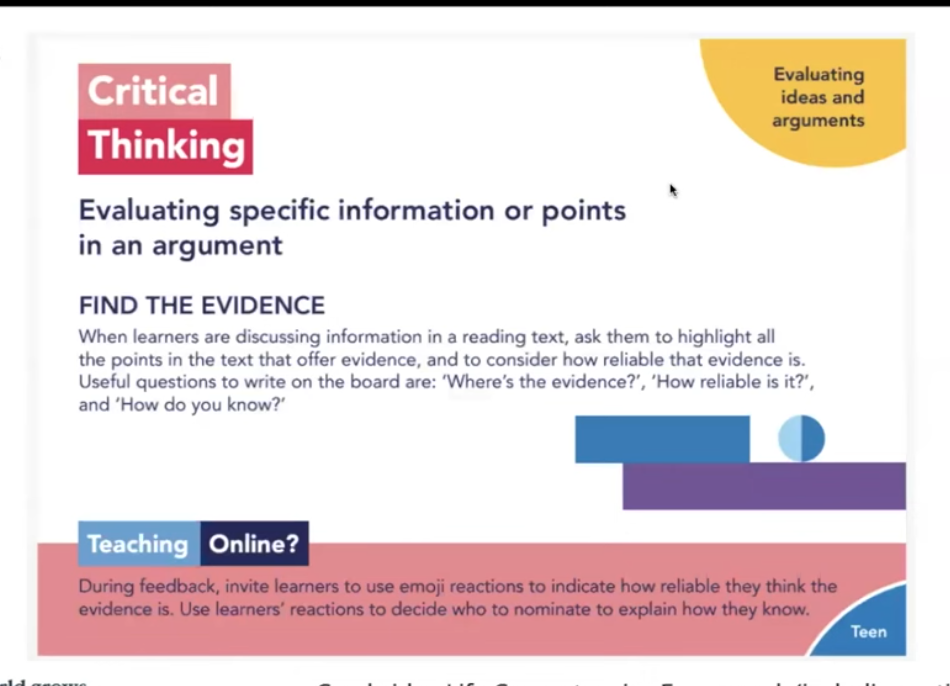
An example activity from this:

This can be used on a text that Generative AI has produced, to encourage students to question what is produced.

Another activity was to ask students to use for a chosen stage of a task. They should explain where they will use it, why they decided to use it for that stage of the task and then reflect on the outcome. This should be a supportive, encouraging environment. The key thing is encouraging reflection.

The final question was “Are you an autonomous learner?” directed at us teachers. We need to build up our knowledge and understanding of things like AI. This will enable us to be able to give support and advice to students. Turn activities into your own, adapted to your own context. We should also be a learning community in terms of AI, as it is new for us all. This would create a supportive environment rather than one of fear for using it in the wrong way.

The webinar concluded with 3 things to keep in mind: Purpose – you need a reason for using AI, don’t use it for the sake of it or because you think you should. Have a plan. Make it sure it fits the purpose. Privacy – any data that you put into GenAI chat becomes part of the data that the Chatbot uses. So anything you put it can be repeated to other users. Therefore don’t enter personal data about you, your learners or anyone else into it. You should also not put copyrighted things into it if you don’t own it. Planet – the use of GenAI has an effect on sustainability in terms of the environment and society as a whole.

My thoughts and ideas

The first thing that I couldn’t help thinking was that when I was learning Italian intensively and autonomously in the summer of 2014, I would have LOVED to have had access to GenAI! Being able to get instant basic feedback on my writing would have been very cool. I wonder how competent I would have been at handling the feedback i.e. at identifying which parts were valid and which parts were sketchy.

There’s also an AI tool we learnt about in one of the AI professional development sessions delivered at work, Google Notebook, where you can feed it a bunch of content and it converts it into a podcast which is a discussion between 2 “people”, in passably natural spoken language. It is called a “Deep Dive”. The usual AI caveats apply, in that what it churns out in the podcast may not be accurate to what was fed to it and it might make stuff up. Personally, I would have loved using it for Italian learning though. It would be really good for generating content to listen to, using topics and vocabulary that you have some familiarity with. You could read the texts in preparation. I don’t believe this is the intended purpose of the tool (it is supposed to be a research assistant, and you are effectively outsourcing reading and summarising texts to AI) but it would be a very good use of it! It would also mean the issue of accuracy was less acute, given the purpose of listening to the podcast/summary would be to practise listening rather than to make high stakes decisions based on that output!

Where I work, we’ve mostly been coming at it from the perspective of how to conduct assessments in a world where AI exists and students use it in the production of their written work. Being part of a university, the first stage was waiting for there to be university policy on it. Now we are at the stage of being able to integrate the policy into our programme. It is still a slow process as there is a lot of procedure to follow when you bring in new things. We are shifting from a zero tolerance policy, which obviously was not very effective but all we had to be going on with, to identifying how and when AI could be used effectively in students’ learning and where the boundaries are. We want to integrate positive use into lessons, which echoes what this webinar was saying. By modelling effective use and giving students opportunities to use it with support, and highlighting its limitations, we hope to help them become more AI literate and therefore less likely to use it in detrimental ways. Maybe at some point we will have to teach them about Google Note and the limitations of it, since it is likely something that they could use at university as part of their process.

It is nice to be moving towards a position in which we can acknowledge the positive elements of AI. Of course, as quickly as we adapt, so quickly will it continue to evolve. (The tools we learnt about in the session where we learnt about the “Deep Dive” – wow! I may turn my notes. or at least some of them, from that session into a future blog post…) I think, going back to the webinar at the root of this post, one of the great things about it (the webinar, that is) is that the skills and criticality, and ideas for teaching those which were presented, will continue to be equally relevant even though the ideas for using the AI itself will change and evolve. As for the part about learner autonomy, in my view they nailed it – it was so good to see them discussing it as something to bring into the classroom and develop (I have done a lot of work on that in my career – through classroom research, through publication, through conference presentations and webinars) rather than something that learners are or aren’t. So, as I said before, it IS definitely worth a watch! Also worth taking some time to look at the Cambridge Life Competencies framework and resources attached to it.

Tracking Professional Development

How do you keep track of your professional development? Where I work, we have a log (a Google sheet) which is shared with us at the start of each calendar year and which it is our responsibility to keep up to date. There are two elements (each with its own tab on the sheet),

1) Training log (mandatory) – “21 hours per calendar year, with a balance where possible between centre-wide development, programme-specific development and external development. These activities may include online or face-to-face training courses, talks, and workshops.”

2) Scholarship log (optional) – “…scholarship can be defined as broad and varied activities which are personal, but structured and reflective in their nature. This could be done by further qualifications or research. […] The definition of scholarship is knowledge acquired by study. In the context of learning and teaching, it might mean evaluating the impact of new approaches in your teaching or carrying out projects to answer specific pedagogical questions.”

I think it is good to have this framework for recording development, as otherwise I’ll attend stuff/watch stuff/do stuff, blog about some of it, but not have an overview. Recently 4C in ELT posted asking “How often do you actually seek out recordings to talks you missed and watch them?” – I was able to look at the log and identify at least 12 (there’s another session I watched via recording too that I haven’t yet added!) for this calendar year. I like accessing sessions via recording because then I can pause them whenever I want to (for a wee, to get a cup of tea, to have a thinking break…). Anyway, in total, in this calendar year, to date (it’s not over yet, for all it’s December already!), I’ve logged 129hrs in my training log (!)

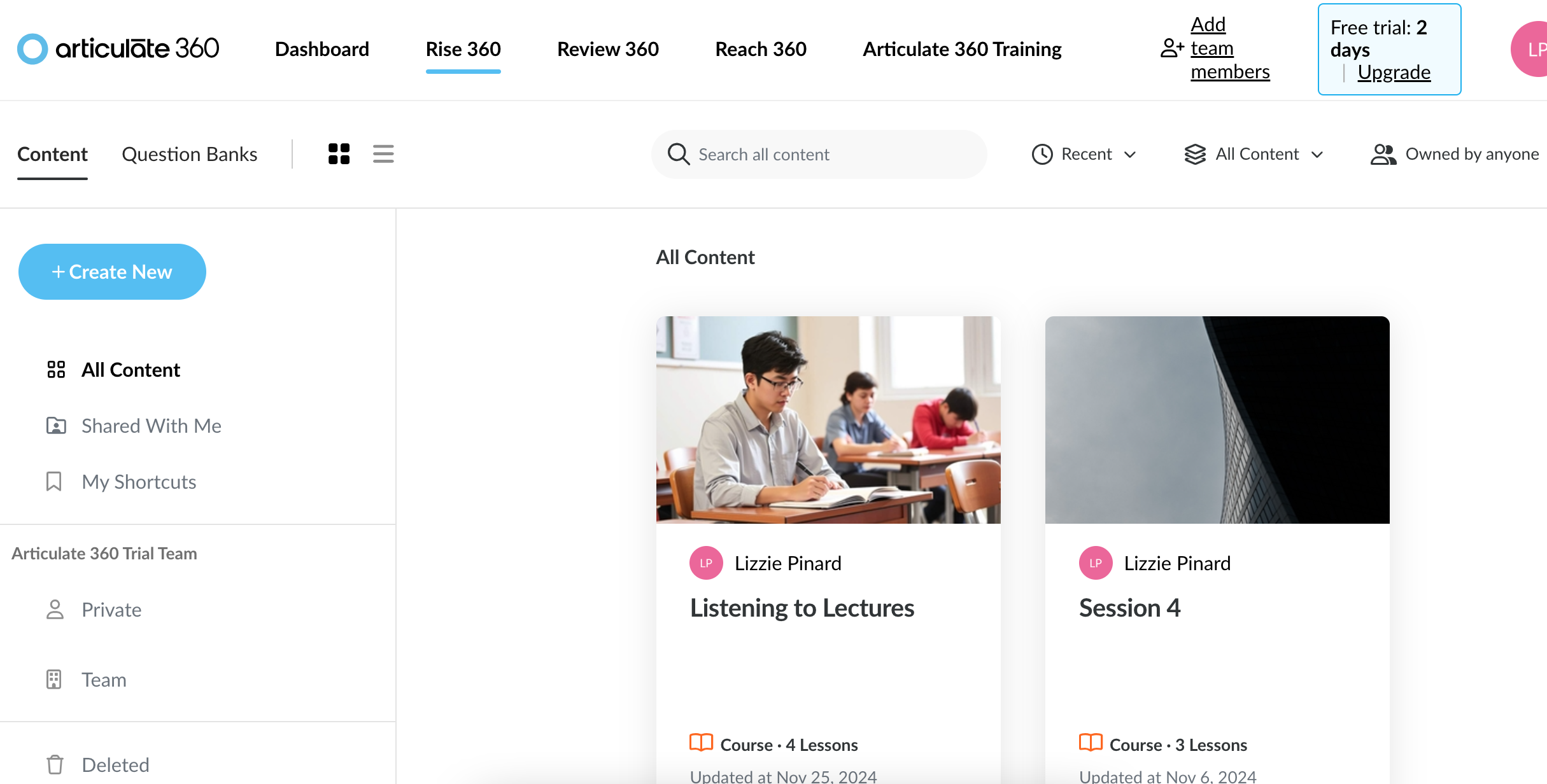
The biggest chunk of that, weighing in at 50 hours, is the Instructional Design course I have completed this semester. 10 weeks, at 5hours per week. (The course reckons 5-6 hrs per week so I took the lower bound for logging purposes.) It includes synchronous tasks and a weekly one hour Google Meet session. There is also an optional assessment, creating materials using one of the tools which I did in a race against time, while I still had access to the free trial of the tool in question! It wasn’t a rush job but there were definitely extra hours squeezed into those weeks! I have been fitting the course in around everything else, piecemeal – Google Calendar and Google Keep have been my very good friends this semester, for keeping track of everything going on. (There are two more weeks of the course, but I’ve logged the course as one entry using the lower bound of the time, as otherwise there would be a million mini-entries of time spent! Suffice it to say it is unlikely to be *less* than what I’ve logged, much more likely to be more!)

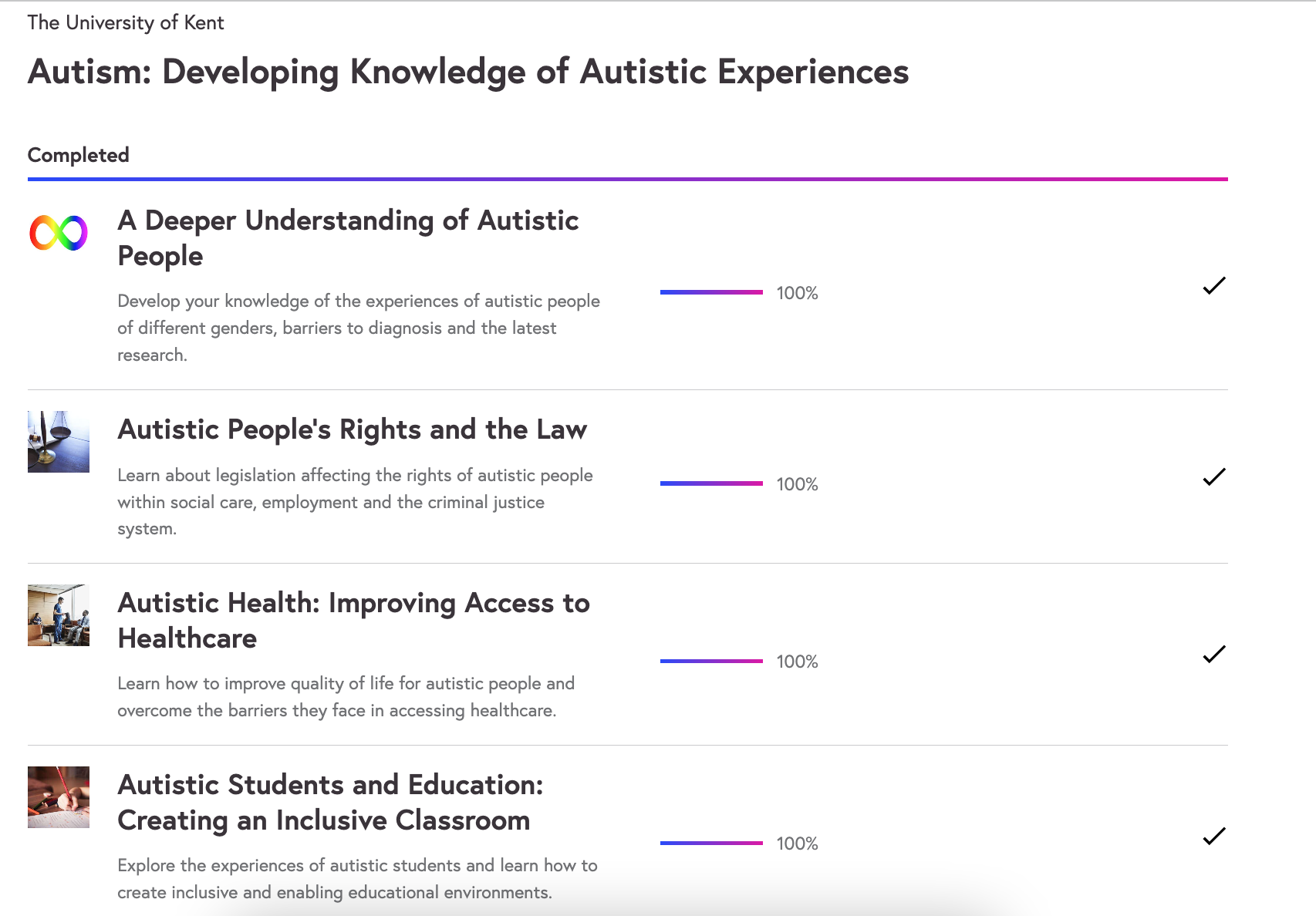
The second biggest chunk, at 48hrs, was a FutureLearn Expert Track (which is a set of courses on a particular theme) – Autism: Developing Knowledge of Autistic Experiences:

I completed this Expert Track during the summer holidays this year – 4 courses, 4 weeks each, 3hrs per week. However, I did them in a more compressed time frame – more hours per week, fewer weeks. Hyperfocus is a wonderful thing!

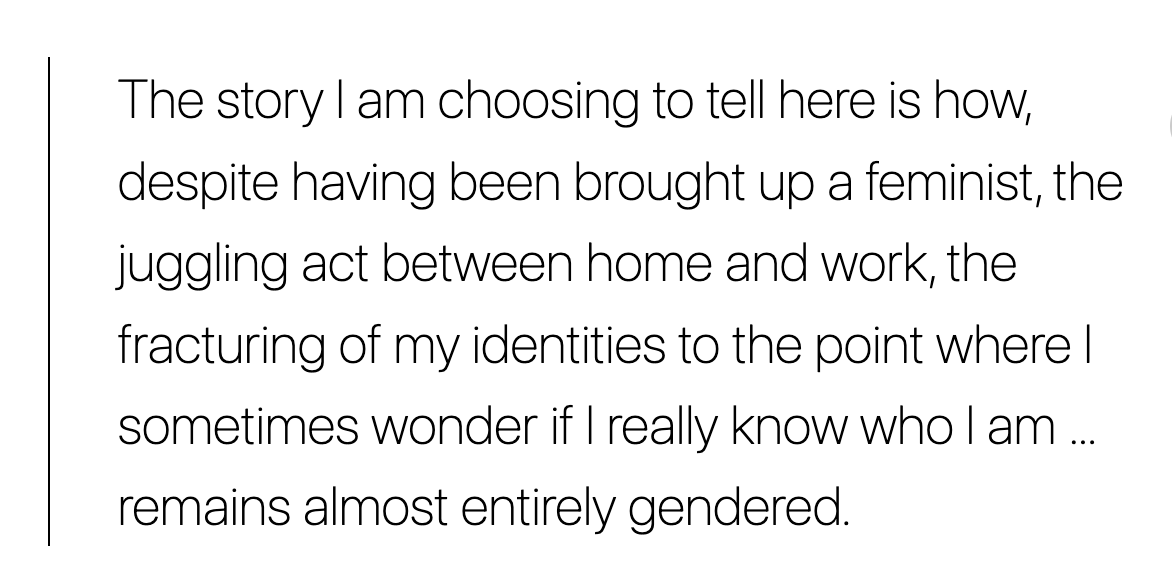
So, those two, between them, account for nearly 100hrs out of the 129. It’s inevitable that a course is going to represent a larger number of hours than one-off things can. A distant third, in terms of chunks of hours, is the ELTC Away Day which accounted for 6hrs: A morning of talks and an afternoon of workshops, all F2F. For me the highlight of the day was the session in the afternoon about the EdDoc run by Sheffield University’s School of Education. In an ideal world I’d like to start doing one in the academic year 2026-2027. Since that session, which took place in late September, I’ve come up with an idea and started doing some reading around it – though the Instructional Design course temporarily moved further reading/preparation to the back burner (time is finite, however hard I hyperfocus!). Close behind the Away Day, in terms of hours, was a “slow conference” called Feminism X EAP, which I spent 4hrs on, not consecutively but over the course of a week or so. It seems a long time ago now, but it took place between the 9th and 15th May. It was really interesting, Story – by Bea Bond. It was Activity 2/3 on Thursday 9th May::

I recommend having a read! I hope there will be another slow conference next year, I’d never participated in one before but it is a format that really appeals to me.

The remaining hours have mostly been made up of watching recordings of various sessions and attending a small number of live online sessions too. Many of the recorded sessions I found via MyDevlopment which is our university professional development portal, combining internally made content and curated external content. Through it I discovered a treasure trove of webinars hosted by CareScribe – and in seeking out this link, I notice that there are a number of new ones which I am keen to watch when I can! Carescribe focus on neurodiversity and was founded by an NHS doctor, strategy consultant and software engineer in 2020, and the tag for their events page goes thus: “We run free online events to raise awareness and support neurodiversity in the workplace. See what talks are coming next and sign up below.” Highly recommended.

I wouldn’t have known about them without MyDevelopment, where some of the recordings are linked to as part of the curation side. I suppose one of the challenges of development is finding the sessions to attend (or watch via recording) in the great jungle of the internet. We are quite lucky in this regard. We have MyDevelopment, as already discussed, but it is a university-wide platform so it doesn’t curate ELT-specific content. However, our TD team put out a weekly bulletin via Google Workspace highlighting external opportunities amongst which webinars and recordings. There is also an internal one highlighting sessions the TD team is hosting and also sessions that University are running relating to education in general e.g. about AI, about Blackboard Ultra, about how to teach inclusively etc. Examples of sessions I’ve attended live online via MyDevelopment are Supporting Dyslexic Students and Students with SpLD and Supporting Students on the Autism Spectrum.

In terms of ELT-specific online sessions and recordings, there has been plenty of AI-focused content delivered and recorded by the ELTC TEL team, which I have accessed via a mixture of watching recordings on our ELTC TD portal (separate from My Development, just for our department) and attending live online when I can. I have also watched an older recording about pronunciation teaching in EAP by Gemma Archer (of Strathclyde University, at least at that time). In terms of external content, there was a recording of a Penny Ur session called “Getting them to talk in English” which lives on YouTube, recommended by Sandy Millin in one of her TYT Delta Newsletters (you don’t have to be doing the Delta to benefit from them!).

All in all, it has been a good (calendar) year for development, though I’ve not done much blogging. I think I’ve ended up instead with bits and bobs of notes – in the development log, in google docs linked to in the development log. Thank goodness for the development log, without it I would be like “ehhh I didn’t do THAT much development this year really, did I…how remiss of me” because it all becomes part of the blur of everything else we get up to at work (or in the summer holidays in the case of the Expert Track!) – but all evidence points to the contrary! Perhaps one of my New Year’s resolutions for next year will be to write more blog posts linked to the things I do for development/my reflections on it! (Perhaps I could put some of the links in the other tab of the scholarship log, which for this year is rather empty…)

Anyway, circling back to the question at the start of this post (and congratulations if you made this far!) – how *do* you keep track of your development? Do you have an effective system for it? And also do you have any links to cool stuff you’ve read or watched that you could share with me so that I can have a look too? 🙂 I look forward to hearing from you via the comments!

Instructional Design Course

I am 8/10 weeks through the Instructional Design course (link) run by some of the good ELTC TEL team folk. Their site is called The Training Foundry and on it you can find information about the courses, but also webinar recordings and blog posts. It’s pretty cool. This is the subtitle for the Instructional Design course (IDC):

“Our Instructional Design for Language Teachers course can help experienced teachers design flipped and asynchronous materials.”

It is a 10 week course and I would quite happily recommend it to anyone who is interested in principles of online learning and learning to use a variety of tools to design asynchronous content. It has a weekly live online session (using Google Meet), and each week there are also a series of tasks to complete. There is interaction between students (sharing output, commenting on others’ output etc) via a forum.

Most of the tools that we’ve learnt the basics in were actually new to me (with the exception of Google Slides [Week 1] but even with that I learnt new things about it!):

  • Wordwall

Wordwall (link) is a very user-friendly tool. It is subscription-based but I haven’t taken out a subscription, just using the limited free version for the purposes of the course. You can make the usual array of ELT activities. One I particularly like is called Word wheel. You input words and it creates a wheel in which each word is a segment of the wheel (looks sort of like a pie chart with equally sized segment). You can “spin” it and it will stop at random on one of the words you have input. You could then get students to define it (as we had to do in one of our online lessons, using vocabulary from an article we had read), for example.

Another online-based tool for making asynchronous content. Also requires a subscription but it offers a free trial which served the purposes of the course. It is pretty versatile. You input information into a form and it spits out an activity. You can also e.g. create a voice recording tool that you could embed into a page on your platform, or whatever asynchronous content tool you were using, for students to use for an activity, make interactive video activities, activities using pictures and much more.

As you can see, my free trial is coming to an end. I’ve had a good play with it though and really like it. But it is EXPENSIVE! So it is something that a business/institution/self-employed person might invest in rather than an individual. Our TEL team has access via institutional subscription, for example. I find it really visually appealing and quite intuitive to use. Interactive elements are built in, if a little limited. But limitations are lifted because you can also embed interactive content from e.g. H5P, Quizlet or its sister tool Storyline (see below for more information about this one!).

  • Storyline

This one, you have to download a programme onto your computer to do it rather than using it in a web browser. It is part of RISE so you can find it there. No screenshot because it only runs natively in Windows and I decided therefore to use an old spare Windows laptop (creak creak creak!) rather than subject my even older Macbook to “Parallels” which is required in order to run it. (Said macbook makes enough take-off noises for using Google meet, so! But for as long as it limps along, I shall use it!!) However, it effectively looks like powerpoint when you open the programme. The area you are working with is slide-shaped/screen-shaped. But unlike powerpoint it has a lot more power in the interactivity department. It has a timeline, it has “layers”, it has “triggers” and all sorts. The newest version also has AI stuff inbuilt. All of this stuff enables you to create a lot of interactivity in various ways. It gives you a 2 week free trial before kicking you out in the absence of a giant pile of moolah. We spent two weeks of the course on it because there is a lot to learn. You would use this if you were creating materials for a course that you were planning to run multiple times because it is a big time investment that is required to create stuff. At the ELTC it is used a lot for flipped content for the summer school and at the bit where I am (USIC) it is used as the basis of most if not all of the interactive content that we embed onto Blackboard for learners, to support the learning done live online and F2F.

In terms of using the interface, I struggled because using it on a computer that hasn’t got strong processing powers and hasn’t got a big screen, it made it even more time-consuming than it should be. Everything is tiny (the parts where you control the “layers”, the timeline and all that jazz) and you have to generate previews to check what you did works properly on a regular basis, and the computer had to strain really hard each time!

The rest of the course

This week we’ve been working on using video in online learning. Which, again, is very time-consuming and requires decent (probably fairly expensive) equipment to produce high quality stuff. We have learnt a bit about video editing (which I have done a little bit of myself in a hobbytastic kind of way!). Still to come in the final two weeks is zooming out to consider more about designing a whole course rather than sub-parts of it and then a final wrapping up and moving forwards week.

It’s been really nice to learn how to use all these different tools and challenge myself in this way. The final assessment was creating a storyboard and run of lessons in Articulate RISE and I am happy with what I have made for that (I have completed it early because of the whole free trial running out thing!). I based it on an AES listening exam lecture. It was also of course interesting to study some of the theory around online learning, as well as focus on making content accessible (which is a legal requirement!). Overall I think the course works really well, building each week on previous content and progressing logically, and the live online sessions definitely complemented the tasks and forum part.

Have you used any of these tools? Which ones do you favour? Do you use any other tools which I haven’t mentioned? There is a lot to keep abreast of, isn’t there!

Using Google+ Communities with classes (2)

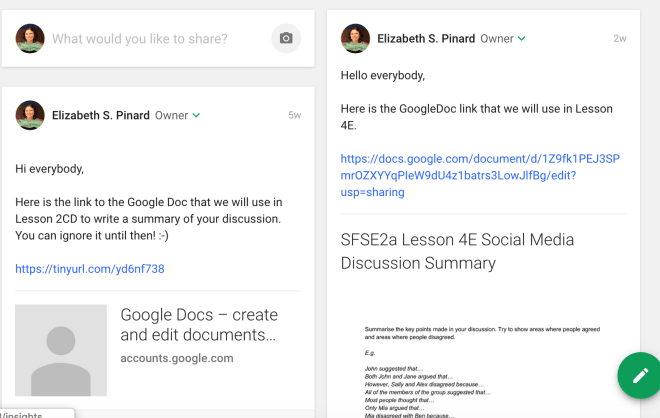
All of a sudden we are 5 weeks into term. This week, also known as 5+1 (so not to get it mixed up with teaching week 6, which is next week) is Learning Conversations week (the closest we get to half term, and only in the September term!) so it seemed a good time to take stock and see how things are going with Google Communities, following my introductory post from many moons ago.

Firstly, it must be said that the situation has changed since I wrote that first post: Now, all teachers are required to use GC instead of my Group on MOLE (the university brand of Blackboard VLE) because we had trouble setting up groups on MOLE at the start of this term. Nevertheless, I am carrying on with my original plan of reflecting and evaluation on my use of GC with my students because I think it is a valuable thing to do!

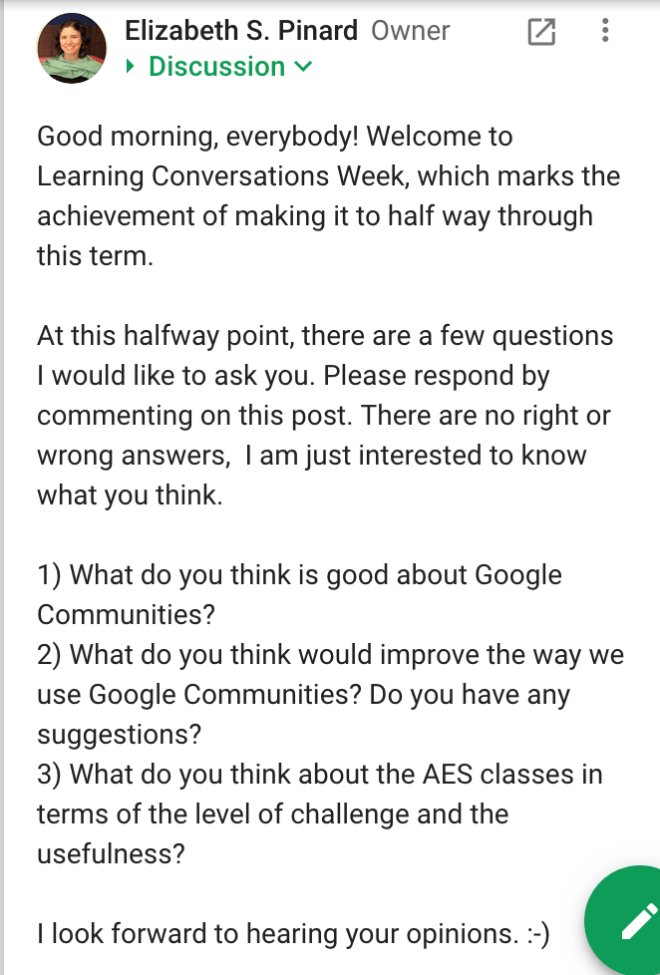
In order to evaluate effectively, I wanted to have the students’ perspective as well as my own, I posted a few evaluative questions in the discussion category of each of my classes’ GC page.

So, no science involved, no Likert scales, no anonymity, just some basic questions. (The third question was because I thought I might as well get their views on how the lessons are going so far at the same time!) I’m well aware of the limitations of this approach BUT then again I’m not planning to make any great claims based on the feedback I get and I’m not after sending a write-up to the ELTJ or anything like that either (would need all manner of ethical approval to do that!). I did try to frame the questions positively e.g. “What do you think would improve the way we use GC?” rather than “What don’t you like about GC?” so that the students wouldn’t feel like responding to the question wasn’t a form of criticism and therefore feel inhibited. An added benefit is that it pushes them to be constructive regarding future use rather than just say how they feel about the current use of it.

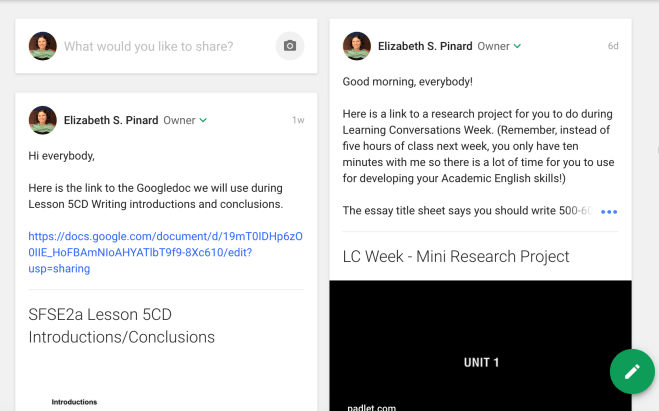
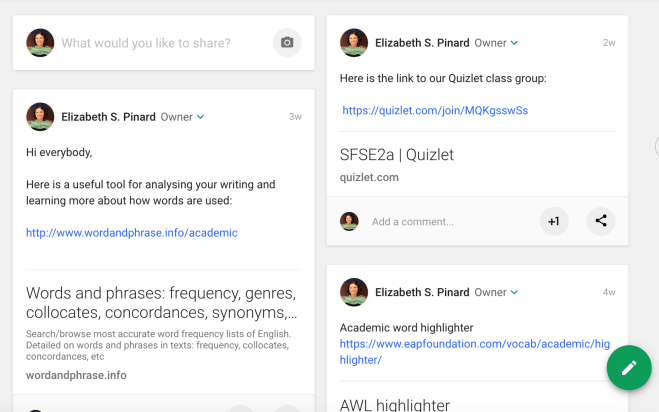
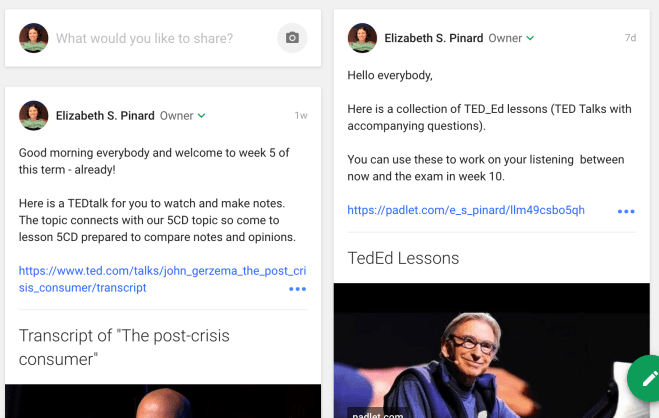
Before I go into the responses I’ve had from students, however, it would make sense to summarise how I’ve been using the GCs with them. I recently wrote about GCs for the British Council TeachingEnglish page (soon to be published) and the way I came up with for describing them in that post was “a one-stop shop for everything to do with their [students] AES classes” and that is basically what it has become:

Speaking Category extract


Writing Category extract


Vocabulary Category extract


Listening Category extract

I would say the main use I have made of it is to share materials relating to lessons, mostly in advance of the lessons – TedTalks, newspaper articles etc – but also useful websites and tools, for individual use or class use – AWL highlighter, Quizlet, Vocab.com etc. Finally, it is great for sharing editable links to Google Docs, which we use quite often in class for various writing tasks. Other than these key uses, I have also used it to raise students’ awareness of mental health issues and the mental health services offered to students by the university, during Mental Health Week here (which coincided with World Mental Health Day) and to raise their awareness of the students union and what it offers to them.

In terms of student feedback, they think it’s “convenient”, “easy to use” and they “enjoy using” it. They also mention the ability to comment on posts (not present with My Group on MOLE) and communicate outside of the classroom as well as in it. In terms of suggestions for improvement, one student said students should use it to interact more frequently but that it should be clear which posts are class content and which are sharing/interaction. A couple of students also said they’d like the Powerpoints used in class to be uploaded there. However, those are available on MOLE. The trouble, of course, is that in using GC rather than My Group (which is on MOLE), students are a lot more tuned into GC (which we use all the time) than MOLE. I have no scientific evidence to back this up, but I suspect that be it academically or personally, if you have to use multiple platforms you tend to gravitate towards one, or some, more than others rather than using them all equally, particularly if time is very limited, as it is for busy students! (I could be wrong – if you know of any relevant studies let me know!) Unfortunately GC cannot fully replace MOLE as students need to learn how to use it in preparation for going to university here and they need to submit coursework assignments to Turnitin via MOLE. Perhaps, then I need to come up with ways to encourage them to go from one to the other and back, so they don’t forget about ‘the other’…

In terms of future use, I have set up a little experiment in that as part the of Learning Conversations that are taking place this week, we have to decide on Smart Actions that the students are supposed to carry out. E.g.


Go to Useful Websites on MOLE and explore the ‘Learning Vocabulary’ websites available. Tell your teacher which websites you visited and what you learnt from them by the final AES lesson of Week 6.

Some of them, like the above, lend themselves to posting on GC. In this way, not only do they tell me what they have learnt but also they share that learning with the rest of their classmates. So, in their learning conversations, whenever the Smart Action(s) were amenable to this plan, I have been encouraging students to use GC to communicate the outcome to me and share the learning with the rest of the class. We will see how it goes, if they do post their findings etc. Be interesting to see what happens! Another idea I’ve had is to do something along the lines of “academic words of the week”, where I provide a few choice academic words along with definitions, collocations, examples of use and a little activity that gives them a bit of practice using them, and get them to also make a Quizlet vocabulary set collaboratively (I have a Quizlet class set up for each class). Then perhaps after every couple of weeks we could do an in-class vocabulary review activity to see what they can remember.

Finally, it seems to me that Monday, being the first day of the second half of the term, is a crucial opportunity to build on student feedback by getting them to discuss ways in which we could use the GC for more interactive activities and find out what they’d be interested in having me share other than class-related materials and the occasional forays into awareness-raising that I have attempted. The key thing that I want them to take away is that I want the GC to work for them and that I am very much open to ideas from them as to how that should be, so that it becomes a collaborative venture rather than a teacher-dominated one.

We shall see what the next five weeks hold… Do you have any other ideas for how I could use GCs more effectively? Would love to hear them if you do!


#ELTChat Summary 18/05/2016 CPD for teachers, using social media

ELTChat is a weekly Twitter-based discussion that takes place on Wednesdays at 7pm U.K. time under the hashtag #ELTChat. You can read more about it here and find a list of summaries of past discussions here.

The topic up for discussion on 18/05/2016 was CPD for teachers, using social media. I nabbed the summary writing duties (for the first time in ages, it seems!) as entering the online community in early 2011 was one of the turning points of my career.

In order to make this summary as user-friendly as possible, I am going to organise it by general comments and then by tool (titles are clickable links that take you to the site) and finish off with some thoughts of my own. So, feel free to read about them all or skip to the ones you are less familiar/more interested in. Order is random rather than some kind of ranking!

General:

  • I think any social media is good for CDP depending on who/what you follow (@nahirco)
  • It really is about who you follow. Makes such a big difference. (@Hada_ELT)
  • Can anybody follow you (like Twitter)? Or do you have to accept them (like Facebook)? (@sandymillin – asking about Google+ but always a relevant consideration when newly using some kind of Social Media!)
  • Social Media is a great way to do CPD as most people already use it… just haven’t necessarily thought of using it for that purpose (@thebestticher)
  • One of the big questions – what to choose among this cornucopia of info (@Marisa_C)
  • It’s the five minutes a day thing for me, much like learning a language. Daily habits easier (@sandymillin)
  • I try to make Twitter and Facebook lists of interesting ELT/Phon profiles and keep up with them once a week. Feedly helps me keep track of blogs. (@pronbites)
  • Curation principle the same in all these tools – look and feel is different of course – which is great (@Marisa_C)
  • The ability to read and type quickly both help too 😉  And now, lots of experience of what is worth sharing/saving/reading (@sandymillin)
  • My CPD saw a major shift when I linked it to social media. It got me into the ‘global classroom’ -sorry cliche but true (@Hada_ELT)
  • I tend to take what comes in on my timeline – but LOOK for stuff when preparing sessions for Delta or talks (@Marisa_C)
  • It’s often easier to be surprised when you don’t mind what you find (@SueAnnan)
  • Wanted to share a few links from my blog with guides to online CPD, then realised too many! Mostly here:  (@sandymillin)
  • It’s also nice to be able to ‘talk shop’ without driving everyone I know insane 😉 (@thebestticher)
  • I presented this topic on the #vrtwebcon and shared the post on the #ltsig blog  (@Marisa_C)
  • And we are mostly able to share info now beCAUSE of social media (@Marisa_C)
  • Sharing recent @iatefl_ltsig blog post on Social Media Symposium #vrtwebcon   – summaries, slides, recordings (@Marisa_C)
  • I switch(ed) all of the automatic things off on my social media accounts. Think I should choose when/where to post (@sandymillin)

1. Twitter (obviously!)

Screen Shot 2014-05-05 at 14.46.31

  • Twitter is home to #ELTChat (see above for more information).
  • I think with Twitter you assume people want professional connections, some people prefer to keep FB personal (@TeresaBerstwick)
  • Source of ELT info (blogs, events, books, freebies..) and of course new technology. Endless source of inspiration  (@Hada_ELT)
  • The assistance is super fast on twitter whenever you need an ear (@SueAnnan)
  • And the learning – there is ALWAYS a great takeaway for me whenever I log in but I DO follow good people (@Marisa_C)
  • #ELTChat kick-started my professional development online and changed my life. (@sandymillin)
  • I tend to come across things on twitter when I’m being intentional about CPD (@thebestticher)
  • I wrote this post about Twitter for CPD  (@LizziePinard)
  • The hub is Twitter in general for my CPD (@Marisa_C)
  • I find that work on #eltchat has improved my ability to say a lot in just a few words #eltchat have been able to describe lesson pln in 140 (@Marisa_C)
  • Twitter is my CPD (@fionaljp)
  • I love the random #ELT discussions I sometimes get into on Twitter – they end up being really informative. Great motivation (@Hada_ELT)
  • I find Twitter more serious than Facebook and Facebook can be more contentious (@SueAnna)

(Though it wasn’t discussed, don’t forget other hashtag discussions such as #ELTChinwag [alternate Monday evenings at 8.30pm UK time] and #TEChat [Friday lunchtime UK time], as well as hashtags that are always in use like the #IATEFL one and the #mawsig one.)

2. Facebook

Screen Shot 2016-05-20 at 12.29.07

  • Lots on Facebook now I’m friends with @sandymillin (@TeresaBerstwick – and I second it!)
  • I use Facebook a lot, am friends with lots of teachers who share interesting things so CPD kind of comes into it! (@Thebestticher)
  • FB has changed a lot in the last couple of years or rather WE have changed it (@Marisa_C)
  • My FB contains teachers that don’t use Twitter much. It means contact there too (@SueAnnan)
  • I only have one account (not separate) because I can’t be bothered with two, so I do try to think about who I add (@sandymillin)
  • Facebook is the things I ‘stumble upon’ so to speak (@thebestticher)
  • I find that stuff is often duplicated on Facebook and Twitter. Depends which I opened first (@SueAnnan)
  • Which is actually good I think as I sometimes miss stuff on one that I catch on the other (@Hada_ELT)
  • There’s a way you can link the accounts I think so it posts automatically to Twitter but not sure if it then posts EVERYTHING you put on Facebook (@TeresaBerstwick)
  • 5 years of building up a network of people on Facebook means I tend to ask questions there – amazing discussions often result (@sandymillin)
  • Definitely more cosy on Facebook. Slower and a bit less ‘open’ (does that make sense?) (@Hada_ELT)
  • Some people prefer to keep FB personal (@TeresaBerstwick)
  • It’s also possible to have a couple of profiles on Fb – one professional and one personal (@Hada_ELT)

3. LinkedIn

Screen Shot 2016-05-20 at 12.30.15

  • I have to say that I can’t stand LinkedIn. I find it incredibly unwieldy and not user friendly at all. (@sandymillin)
  • I use it to connect my school – I find other kinds of connections- discussion groups mostly unwieldy though agree (@Marisa_C) (More information provided subsequently to this Tweet but extending on it: people looking for me or my school for all services we provide – so yes more as a course provider/consultant)
  • I only use LinkedIn now to keep my CV up to date. I used to use the groups but not now (@MarjorieRosenbe)

4. Pinterest

Screen Shot 2016-05-20 at 12.31.15

  • Tried Pinterest but couldn’t get into it. (@MarjorieRosenbe)
  • For me, Pinterest looks pretty, but I don’t find it very useful for CPD. Good for crafts etc (@sandymillin)
  • I use pinterest a l ot when I prepare talks or seminars while doing background research/ ideas or reading (@Marisa_C)
  • I love Pinterest for new ideas and activities and the constant reminder to try new things (@thebestticher)
  • I have a pinterest account, but I get bored with it (@SueAnnan)
  • I love pinterest – let’s follow one another – i use it a LOT! (@Marisa_C)

5. Diigo

Screen Shot 2016-05-20 at 12.32.21

(Just in case you weren’t aware, Diigo is basically a social bookmarking tool, which enables you to curate bookmarks in way that they are available for anyone to see.)

  • I bookmark every useful link I find using diigo. After 5.5 years, I have over 4500 bookmarks, but can find them again quickly 🙂 (@sandymillin)
  • All of my bookmarks are publicly available too, and other people can access/search them:  Very easy to use (@sandymillin)
  • I add 3-4 links a day.That’s why I like diigo over something like Evernote – free + easy to share with other people 🙂 (@sandymillin)
  • You should be able to download a file of all your bookmarks from delicious. I try to backup diigo in case (@sandymillin)
  • Here’s my guide to diigo (@sandymillin)

6. GooglePlus

Screen Shot 2016-05-20 at 12.33.20

  • It’s just another platform which has other possibilities of sharing -since it’s Google, it’s easier wth all shared docs I guess (@Hada_ELT)
  • Anyone can follow you and you can create circles or join circles. There’s also a totally private area. (@Hada_ELT)
  • So I guess that’s why it’s so good for MOOCs/ITDI – you don’t have to friend people (@sandymillin)
  • You get sent a link whihc gives you access to a ‘closed’ area where material is shared and convos take place (@Hada_ELT)
  • Google+ just doesn’t do it the same for me for some reason. Whatever I sign up too, Twitter and Fb still have the best connections (@Hada_ELT)
  • Have seen it used to great effect during a course – for example – or EVO MOOCs, very versatile (@Marisa_C)
  • Joined a MOOC in Google+ community and it worked really well as a platform for a course. (@fionaljp)
  • Oh yes, you remind me that I do use it and it’s great for the @iTDipro  courses (@Hada_ELT)

7. Feedly

Screen Shot 2016-05-20 at 12.34.27

(From the horse’s mouth (an American horse judging by the spelling of organise!): A single place to organize, read, and share all the content that matters to you — and your team.)

  • For me, it’s about using a reader and having a routine. Feedly collects everything for me… (@sandymillin)
  • With feedly you cannot share  your feeds the way you could with google reader (@Marisa_C)
  • Feedly is a blog reader, whereas delicious is a bookmarker (@sandymillin)
  • I use feedly. Migrated to it after GoogleReader closed. 1 slightly annoying thing is you only have 30 days to read (@sandymillin)

8. Blogs/Blogging

Screen Shot 2016-05-20 at 12.35.39

  • I find blogging helps me reflect on CPD. (@MarjorieRosenbe)
  • Agreed – committing to a ‘new things I’ve tried’ post at the end of each month forces me to keep developing! (@thebesttticher)
  • (@sandymillin promised us a blog post about blogging, based on a recent talk she made at the Innovate ELT  conference this year – well worth reading! – and has duly delivered. Enjoy!)

Passing mention was also made to Delicious (social bookmarking), Scoop.It (curating) and Pearltrees (From their website: “Pearltrees is a place to organize all your interests. It lets you organize, explore and share everything you like”).

Other online development options

We touched on this very briefly at the end!

  • We haven’t said much about webinars and recordings for online CPD. So many available! (@sandymillin)
  • Lots of @iatefl talks available to watch too, and you can read @LizziePinard‘s summaries of many of them:  (@sandymillin)
  • Macmillan recorded all their sessions too (@LizziePinard)
  • Webinars are great, the conversations in the chat box are social interaction and reflection. (@MarjorieRosenbe)
  • Are there too many webinars these days? attendances seem to be low and people watch the recordings instead (@SueAnnan)
  • Guess they’re like blogs. You’ll find what you’re interested in, and ignore the rest. Depends what you’re looking for (@sandymillin)
  • I love webinars! There’s such a luxury. Chilling in my study, in the comfort of my home, I learn, for free! (@Hada_ELT)
  • the #Iatefl series us attracting good numbers, not sure about others (@MarjorieRosenbe)

Basically, as far as I can make out from that little lot, it’s mostly a case of personal preference. “One man’s meat is another man’s poison” kinda thing. Twitter and Facebook seem to be the main ways of connecting with people, though Google Circles also put forward as useful in a course context. LinkedIn didn’t seem to have many fans, but Kirsten Holt swears by it for networking! There are lots of different content curation tools, some purely for bookmarks (Diigo, Delicious) and other for general content (Feedly, Pinterest, Pearltrees, Scoopit). Online webinars are another means of online development, as is blogging. There isn’t time to use all of it, so find what works for you and do it! Then, if using tools that involve following or friending people, think carefully about who you follow/friend as this impacts the content you are shown in your timelines. One thing I think is interesting, and which has just occurred to me while writing this summary, is that no one mentioned Edmodo! Yet, Edmodo is supposed to be an educational platform where teachers can connect with teachers and share stuff. (That said, I’ve only used it with students, which is its other, and perhaps main, purpose)

For me, my Twitter account is a professional account while my Facebook account is a personal account. That said, Facebook gives me some CPD too, through the people I’m friends with (e.g. Sandy Millin who shares lots of blog posts), the groups I am a member of (such as the IATEFL group) and the pages I “like” (like the TeachingEnglish page). I only “friend” people I actually know so sorry to all the people who have attempted to add me that I haven’t accepted – if it’s any consolation, all you are missing out on is photos of my garden/vegetable patch, my horse and the like! I also have a LinkedIn account but haven’t got to grips with it fully. I recently joined a load of groups but haven’t had time to follow up yet. Pinterest I use for vegan recipes, but when I say “use” – I have an account, it periodically emails me stuff that might be of interest (read: vegan recipes) which I occasionally click on. So, not exactly an active user! I used  to use Diigo but forgot about it, feel like I should resurrect it at some point… Finally, of course, there is my blog. There is always my blog. 🙂 

IATEFL 2016 Online: Enhancing writing and speaking outcomes using Google Apps (Joe Dale)

Joe’s session was…fast. In keeping with my approach to blogging about these online sessions, I will just share a few things I learnt together with my comments on them. I recommend that you watch the full recording to find out more!

The first thing to say is that I am already familiar with some Google Apps. However, that that doesn’t mean I didn’t learn something from Joe’s session.

Google Docs

I’m guessing you all know what Google Docs is? Most people do, it’s been around a while. Basically it’s a web-based version of Word that enables multiple editors to make changes to a document simultaneously and comment on each others’ changes. This makes it perfect for collaboration. Students can work together to produce a piece of writing, teachers can comment on it, other students can comment on it and everybody can respond to everybody else’s comments on it. (If you want to know more/see it in action, watch Joe’s session!)

A simple yet excellent tip from Joe, that I will use when I next use Google docs with students:

  • If you are having multiple students edit one document at once, insert a table so that the document is divided up into sections. This way, each student, pair or group can take one section and you eliminate the potential issue of students writing on top of each other!

I did a lot of collaborative writing using Google Docs during my two summers teaching on Sheffield University’s pre-sessional programme and this did not occur to me! The students did manage to sort it out themselves (by using enter to find a space further down the shared page to type on) but this would be a much quicker way to do it. Another potential option is to use Google presentations and then each student/group gets a separate slide. However, by using Google Docs in the way Joe suggests, the editable space is unlimited and the Document expands to absorb any extra room needed by the editors.

Chrome Extensions

I didn’t know about these! Hopefully the link should take you to Chrome Store where you can download them for free, otherwise put the name in your Google search bar and it will give you the appropriate link! Once you have installed them, your browser bar will look like this:

Screen Shot 2016-05-03 at 15.15.45

After Diigo and Evernote (the “d” and the elephant respectively), you will see Tab Scissors, Tab Glue and Voice Notes.

  • Tab Scissors: This splits a window containing multiple tabs into two equal screens side-by-side with the split occurring at the tab you are on when you click the scissors. It basically means you can quickly have a look at 2 screens at once, without needing to create multiple windows by extracting the tab you want to see and resizing both new and initial screens. Like the Word keyboard shortcuts I wrote about here, this is  a nifty little time-saver!
  • Tab Glue: This basically undoes what Tab Scissors does! So once you no longer need to see two windows at once, you click on the Tab Glue icon and it puts all your tabs back how they were to start with.
  • Talk and comment: This enables you to make a voice note at any point when you are in a Chrome browser window. Once you have installed it (at which point you will see it in your tool bar as above), you will see a little microphone at the righthand edge of your browser window. Click on this and it pops up a little time counter with a red cross and a green tick beneath it, which is your recording. Speak and then once you have finished, click the green tick. It then generates a link which you can share with others. As far as Google docs is concerned, you can paste it into a comment and the student will see the link in the comment with “Voice note” in brackets after the link. So it’s a little bit like Jing except voice only!

Soundation

This is an app that enables you to make and edit voice recordings. (Much like Audacity, Wavepad or Garage, for those you familiar with any of those) If you google Soundation, and go to the first website that appears, you will see at the top of your browser window “Soundation Studio“, which you need to download and register to use. However, if you scroll down a little, you will see Soundation for Chrome. If you click on this link, then you can use Soundation within your browser window without registering or downloading anything.

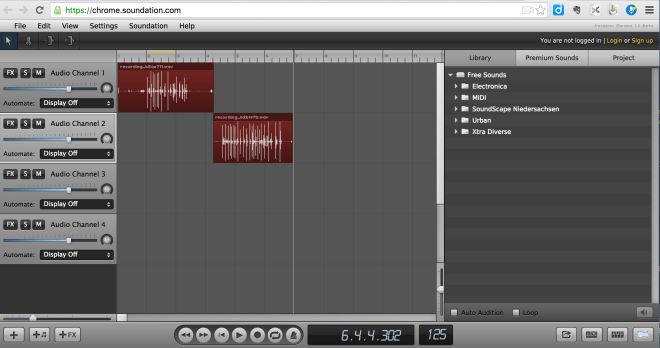
In Soundation, you can create multiple audio channels, into which you can directly record yourself and/or others speaking:

Screen Shot 2016-05-03 at 15.34.33


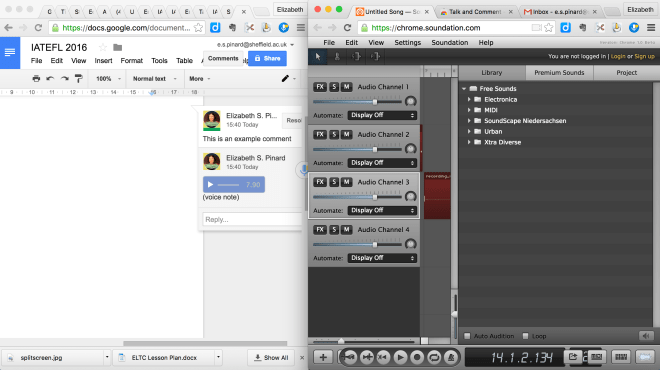
You tell it which audio channel to use by clicking on the one you want it to use, thereby selecting it. If you use Tab Scissors to split your windows, you can look at Google Docs with your Voice Notes comments and Soundation at the same time. You can hit record in Soundation, then play on your Voice Note and Soundation will record your voice note:

Screen Shot 2016-05-03 at 15.45.39

In this way, you can create a single sound file that knits together a series of comments, making it into a dialogue. So, students could create a dialogue in Google docs using the Voice Notes app and then you could turn it into a complete file and share it, for example using Padlet. You would have to first export it to your desktop as a .wav file (which you can do without registering still – just File -> Export) and then upload it to the platform e.g. Padlet that you are using to share it.

Gotta love technology! This stuff all has tons of potential! I like how simple Soundation is to use. I didn’t manage to follow Joe’s explanation but a minute or two of clicking around and I had the hang of it. I also love the Scissors and Glue thing for viewing two tabs and then putting things back how you had them in the first place in a couple of easy clicks. Time-savers are always a win in my book! I do question, though, with the Talk and Comment, just as with Jing, exactly where all these files that you get links to end up?! You know, you get the link to them so the link links to somewhere out there in the big interweb world, but where? And can I ever delete them? Answers on a postcard! Anyway, again, I recommend watching the recording – it’s literally 24 minutes long. And you get a lot for your minutes!! 

ELTC Training Day 2016 – my takeaway (including lots of tech-y stuff!)

After I did my learner autonomy workshop in November, I was invited to repeat it as part of the ELTC Training Day which took place on Thursday 14th January this year. I didn’t need asking twice to be part of this exciting programme of sessions – so duly organised my holiday to be back from visiting family and horse in time to participate! The day didn’t, of course, disappoint. There were two parallel sessions running throughout the day with a tech-focused block and a development-focused block in the morning and again in the afternoon. (I gather the lunch provided in between these two sets of session blocks was rather good, though I did the packed lunch thing which is always easier when you’re vegan :-p )

As all the sessions were really useful, I thought I’d share my notes/take-away from each of the ones I attended…

Smartboard Extras

Smartboard Fun!

Do you have Smartboards at your school/centre? We have. And with Smartboards comes the responsibility of a) knowing how to use the thing properly and b) using it in a principled manner in your lessons!

It turns out that the newer versions of Smartboard (Version 15.1 onwards) have some additional interactive functions built in, that allow for student participation using mobile devices. Much of it is geared towards school children *but* one of our tech gurus, Nick, identified and shared with us a couple of features that lend themselves to use in the ELT classroom.

The first of these is the ability to post things to the board. This can be text or images (pre-selected by the teacher depending on requirement) and the board can be open or divided into categories (again, pre-set by teacher).

Basically, to set this game up, the teacher selects the “Lab” button, which is in the toolbar of Smartboard and looks like a Top-hat that a magician would use, and chooses to add an activity of “Shout it out” which is mobile-enabled. The default setting is “categorised” board and you can either switch that to open board or keep “categorised” so that in the next step you will then set the category titles. You can have up to four categories. You also need to choose the type of contribution (i.e. text or images) and the maximum number of contributions per device. 3 is the default but you decide and change accordingly. NB: one device could mean one student, a pair of students or a group of students, depending how you want to run the game/your goals. You could then add a timer or buzzer if you felt it necessary (bearing in mind that timing out doesn’t stop the game and stopping the game doesn’t stop the time! It’s not that fully integrated yet…) and load the game.

You will have a dialogue box and if it is the first activity you do on a day with a group, there will be as yet no contributors. If you do a second activity, the contributors remain loaded, but can be added to. When you click on “start activity” a code is generated and students must input the code into http://www.classlab.com. They will have a screen that requires the code and a username. This username will be associated with a symbol and that will appear next to all their contributions on the board. (NB you may want to turn off the screen while the students do the activity to stop them seeing each other’s contributions, if it is a competitive activity!)

It is useful to cue your computer to the point of the dialogue box being open and the code being generated (so clicking on “start activity” after which you can pause it) before class starts, as it takes quite a while to load fully. You can hide the dialogue box by clicking on the “activity” button, and clicking again reveals it again.

Suggestions for use include but are not limited to revision of vocabulary and academic language e.g. linkers. (One of my challenges to myself is to come up with different ways of using this with my latest group of students who I started teaching yesterday evening, so watch this space for related blog posts! Likewise the picture activity that follows… )

You can use the same activity “Shout it out” for picture sharing. In this case, the set up is the same but you select images rather than text as the contribution type and use ‘arranged randomly’ rather than setting categories (a setting that could also be useful for brainstorming vocabulary, for example, if you use text rather than images!). Again, a code is generated, which the students enter into http://www.classlab.com.

Smartboard also has the capacity to enable teachers to create quizzes and questionnaires. This works in a similar way to google forms but with the added advantage of students being able to respond live in the class, using their devices, alone or in pairs/groups while the teacher can control the time spent per slide or per activity as a whole. It also enables you to view/display graphics showing answers chosen by participants.

A final tip we were given was in use of the pens. You know how when you write on the Smartboard and it looks like a five year old could have done better? Well, if you choose “Text Pen” which is under the pen function, when you write on the board it automatically converts into text! According to Nick it’s pretty accurate even with his writing, and you do have the option to select “x” if it gets it wrong, and that will revert it to handwriting again. Or you can select the tick and edit it, if you prefer.

Ideas for doing a TD session

This was the other TD block session I went to other than my own, and it too gave some food for thought. The TD programme at the ELTC is very teacher-led – the TD team are teachers (as vs. managers) and of course the scholarship circles are teacher-managed too. There seems to be one and often more than one workshop in any given week, with various focuses. Teachers are always encouraged to give workshops (as part of their own development) and attendance isn’t compulsory. Of course, teachers are expected to log 3hrs a week of scholarship time, and workshops can be useful to this end.

Anyway, this session was aimed at teachers who are interested in delivering workshops and we looked at:

  • reasons for attending a workshop
  • reasons for giving a workshop
  • different delivery formats
  • things to keep in mind when preparing a workshop

Reasons for attending included: to support a colleague, to help log scholarship time, to see what others are doing in the classroom, to share ideas, to learn/increase knowledge and skills, amongst others. Reasons for giving included: to help log scholarship time (!), a way of developing yourself, sharing research, sharing ideas and getting feedback on them, feeding back after attending a conference, amongst others.

We looked at different delivery formats and suitability to different scenarios, so talks, presentations, workshops, panel discussions, structured discussions and unstructured discussions, and also agreed that within a single session there may be elements of multiple formats.

Things to keep in mind in preparing a workshop included: knowing your audience (and possible mismatch between their and your aims), knowing the context (e.g. here, it’s not compulsory and teachers are therefore there by choice but that doesn’t mean they aren’t tired at the end of a long week etc.), choosing a suitable format with maximum possibility of engagement, not being OTT (we watched a brief youtube clip parodying a TD session!), amongst other things.

It was an interesting session and I made a few minor changes to the delivery of my session (which was in the afternoon TD block of sessions) based on what I had picked up.

Tech Timesavers

This was one of those sessions that was a whirlwind of little tech things that make you go “ooooh I wish I had known that before!!”

Our main browser on the centre computers is Firefox, so the first thing we looked at was some handy add-ons:

Screen Shot 2016-01-19 at 15.04.14

  • “Reader” enables you to extract articles (except from BBC) without all the ads and links, so that when you open it in Word, you start with a much cleaner piece of text.
  • “Clippings” is a clipper tool that enables you to reuse chunks of text. So, first you create them (think of and input phrases that you commonly use in giving feedback or report writing – I think this would be super for my colleagues at IHPA during report writing, for instance!) and then you can drag it into any browser window or programme for reuse.

We were also shown how to set the options so that: downloaded files are always saved to a specific location (rather than in some hard to find temporary folder somewhere!) – by clicking on the three horizontal lines, going to options and under general selecting “always ask me where to save files”. The browser will then remember the first location you pick for the rest of your browsing session, which is handy!

Finally, we learnt how to save things to the toolbar by selecting “bookmark this page” and changing the option in the drop-down menu to “toolbar” and THEN how to create folders in the toolbar. So Nick has an ELTC folder with things like the portal link in it.

We then moved on from Firefox to other things…

Screen Shot 2016-01-19 at 15.10.25

  • Sticky notes – my notes for this read “(like Mac!)” … I’ve had my current laptop for nearly five years now and I remember when I first got it, Stickies opened automatically. So I’ve been using it since then. It is basically a programme that enables you to have post-it notes on your desktop screen, in a choice of colours. So you could colour code for priority, for instances. Turns out this programme also exists on PCs! Little did I know… It’s pretty basic in terms of use, you just add new sticky, write what you need to remember on it and drag it to where you want it to be on your desktop. You can also resize them according to need, and, as I mentioned, select the colour, as well as setting a due date (must check how to do this on Mac!). One of the teachers mentioned that when she initially started to use it, she needed a real post-it on her real desk to remind her to look at the electronic ones on the computer desktop! 🙂 So maybe it takes some getting used to. Good though. One thing to remember if you use a “managed desktop” : the stickies only open on the first computer you log into. So, for instance, if you got in and went to your classroom to set the computer up, the stickies would appear on there. If you then went to your office and loaded up that computer, the stickies wouldn’t then appear on there too. So, you need to make sure you first access the computer you want the stickies to show on!

Screen Shot 2016-01-19 at 15.06.45

  • Google Keep – this is available to anybody who has a Google account. So, when you are in your email, you go to those nine squares in the top righthand corner of your screen, and click on “more” as many times as you can, including “even more from Google” and in “Home and Office” you will see Google Keep waiting for you. There is also an app for it that you can download onto mobile devices, so you can use it “on the move”. Basically, it’s a lot like Evernote but free. If I didn’t already use Evernote, then I would use Google Keep. The concept is great. An electronic organiser that lets you do most things you could think of – write notes to yourself and keep them in different notebooks, of course, but also saving pdfs/links etc., making checklists that you can tick off, speaking into it for it to convert to text etc. You can colour code notes and add labels (like tags in blog world!) that make the notes more easily searchable, like an index system. And you can share notes.

Next we looked at a couple of things that Google Drive allows you to do:

  • Convert a photograph of a .pdf file into text – take a photograph or screenshot (saved as a .jpeg) of a pdf and save it in your drive. In the options (three vertical dots), open it as a google doc and ta-dah! It doesn’t, however, pick up on italics or reproduce diagrams/images.
  • Voice to text: This only works when using Google docs in Google Chrome browser, apparently. You go to ‘tools’ and select voice typing. You will get a pop-up message asking you to allow use of your microphone and then you are away. Say stuff and it will appear on screen. It also converts punctuation – e.g. if you say fullstop it types a “.” and so on. “New paragraph” and “new line” also have the desired effect. You can imagine the potential of using this with students when creating dialogues etc…

Finally we looked at a few more general things:

Screen Shot 2016-01-19 at 15.03.52

  • Web Corp: A corpus tool that bases its analysis on up-to-date web data. You can specify exactly what it looks at using the advanced options. (E.g. newspapers, which type of newspapers etc.) You can also generate a wordlist for a text that you input (by link or by copy-paste) that ranks words by how often they appear in that text. This could help you decide what language to focus on before teaching a text, for example.
  • Lynda.com: This is NOT free. However, Sheffield University has some kind of licensing agreement with it, so teachers can access it for free, except not me because I am an associate not a teacher apparently! Anyway, if you work for a university, or big institution, could be worth checking if your place has such an agreement and therefore you have free access. It is basically a collection of tutorial videos on everything under the sun, indexed. Would have liked to have had a proper gander but who knows, hopefully one day!
  • Youtube playlists: Unlisted playlists are a good way of collecting videos and sharing them with students. When you find a video you want to share with a class of students, click on “add to” to add it to a playlist. You can then create a new playlist, which you would probably name after your group of students (for ease of identification for you!) and set it as “unlisted”. This means that it won’t appear in search engines but that anybody with the correct link can access it. You copy and paste aforementioned link into whichever platform you use with students (e.g. Edmodo, Google Classroom etc.) in a static location, so that they can easily access it.

At this point we sadly ran out of time and the whirlwind of techy stuff tour came to an end! And you can imagine, at this point I had to directly change classrooms, set up my workshop and deliver it! My poor little brain…

Learner Autonomy

So, my Learner Autonomy workshop was in the last slot of the day (save the Tech Q and A and TD Q and A drop-in sessions, where you could ask the TD team and the tech team any questions – I, for example, asked for a re-run of the questionnaire/quiz thing in Smartboard as I had missed the crucial bit of information for how to access it!), with all that had gone before being a tough act to follow. It seemed to go well enough though, with teachers doing their best to push their tired brains just a little bit longer in order to participate. I enjoyed delivering it, but then I am an LA geek, can never get enough of talking about LA and motivation, and, all-importantly, hearing what others have to say about it too. 🙂 For example, one of the teachers told us about his successful reading project, which sounded really good. In fact, hmm, wonder if I could elicit a guest post…

And that was the training day! Lots of useful stuff to kick start the new term and year with, which I look forward to implementing/using…

Hope some of it is of use/interest to you too!